Turn off Real-time protection (temporary)
Temporarily turn off Real-time protection
- Open Start, search for Windows Security, and open the app. These steps apply to Windows 10 and Windows 11.
- Select Virus & threat protection, then Manage settings under Virus & threat protection settings.
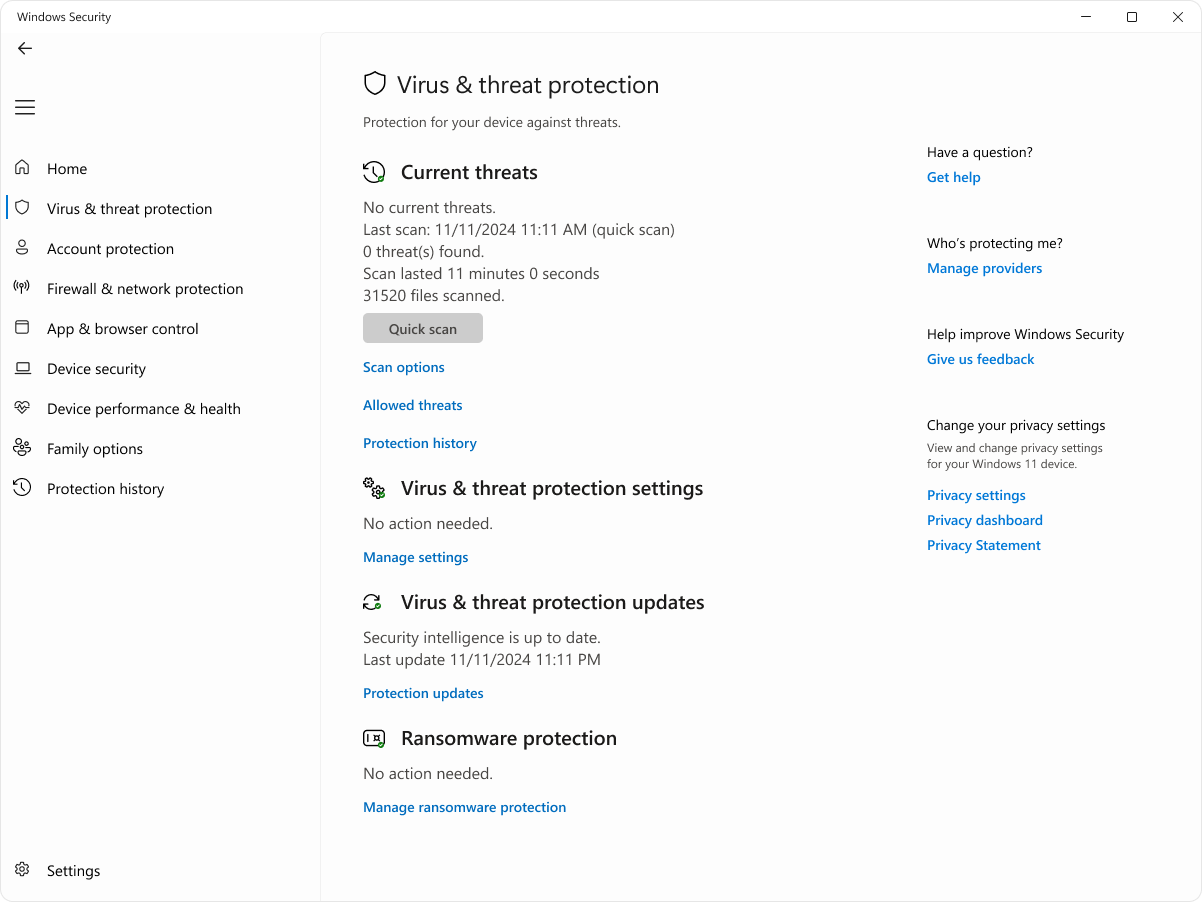
- Set Real-time protection to Off and approve the administrator prompt if one appears.
- Keep it off only as long as needed. Files you open or download will not be scanned in real time during this period, so use files only from trusted sources.
Automatic reactivation and restarting
This toggle disables protection temporarily. Microsoft states that it turns back on automatically after a short while, so it may reactivate before a restart. You can also set it back to On as soon as you finish.
After restarting your PC, check that Real-time protection is On. If it is still Off, enable it manually. Automatic reactivation may depend on device policies or another antivirus product.
Reference and image: Microsoft Support — Virus & threat protection ↗