Turn off UAC confirmation through Local Group Policy Editor
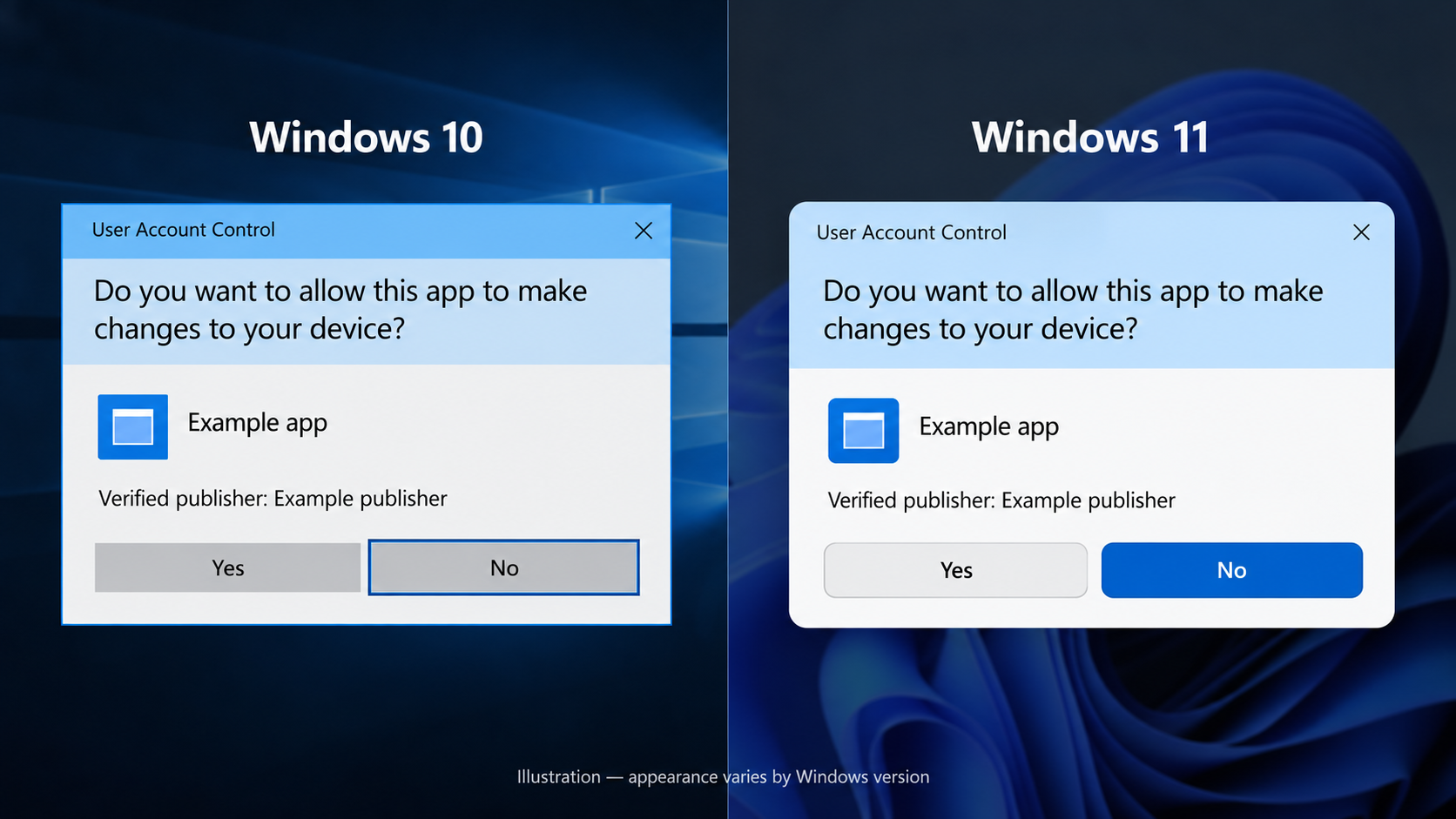
Windows may display a User Account Control (UAC) prompt when an app needs administrator permissions. The illustrations below show example prompts on Windows 10 and Windows 11.
Change the confirmation policy
This method is not available on Windows Home because it does not normally include Local Group Policy Editor (gpedit.msc). Use Pro, Enterprise, or Education with administrator permissions.
- Press Windows + R, enter gpedit.msc, and press Enter. Approve the UAC prompt to open Local Group Policy Editor.
- Navigate to Computer Configuration → Windows Settings → Security Settings → Local Policies → Security Options.
- Open User Account Control: Behavior of the elevation prompt for administrators in Admin Approval Mode. Record its current value.
- On Local Security Setting, select Elevate without prompting as illustrated below.
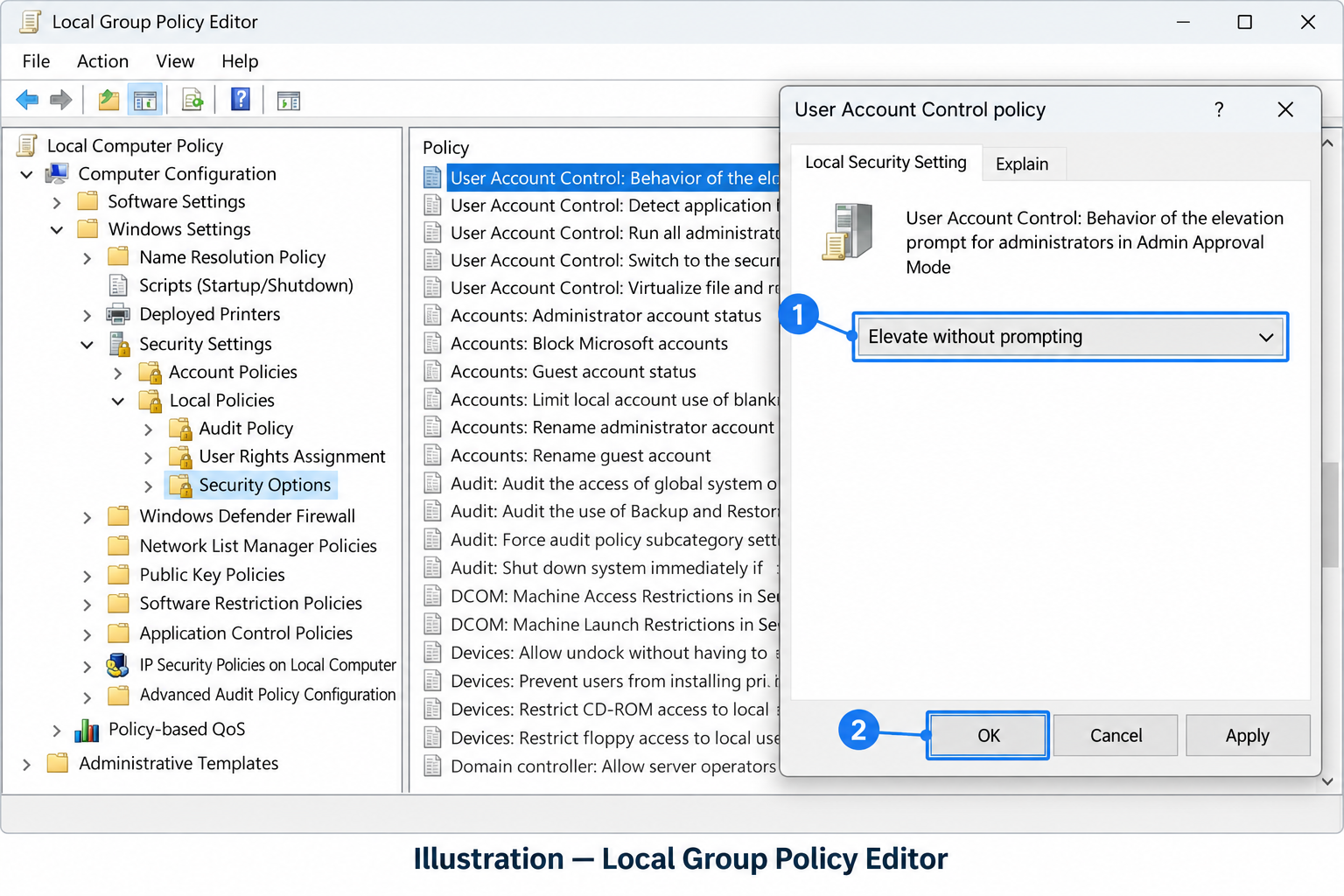
- Select Apply, then OK. This policy normally takes effect without restarting. Try opening the app again.
Restore confirmation prompts
Reopen the policy, restore the recorded value, and select Apply and OK. The usual default is Prompt for consent for non-Windows binaries. For organization-managed devices, consult your administrator first.
Microsoft Learn reference: User Account Control configuration ↗