Sync your Windows clock
These steps apply to Windows 10 and Windows 11. Connect to the internet before syncing your clock with a time server.
Sync the clock
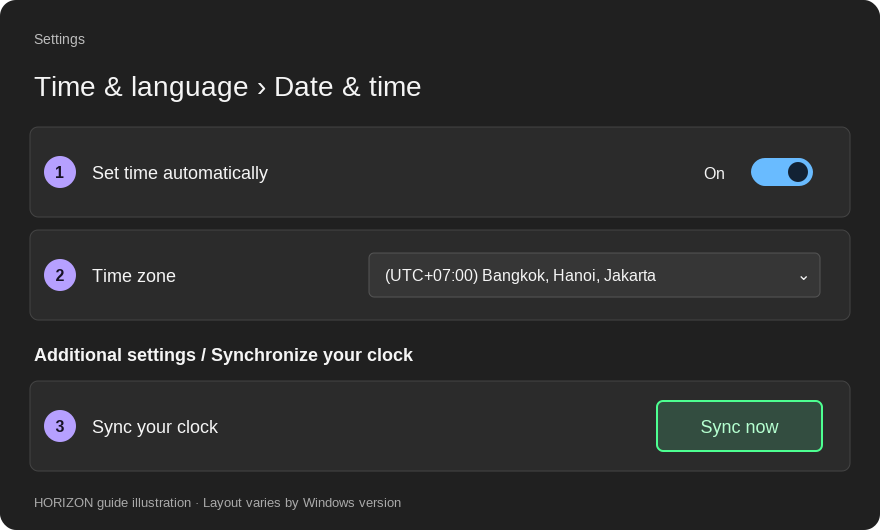
- Open Start → Settings → Time & language → Date & time.
- Set Set time automatically to On.
- Check that Time zone matches your location. In Thailand, choose (UTC+07:00) Bangkok, Hanoi, Jakarta. If automatic detection picks the wrong zone, turn off Set time zone automatically and select the zone manually.
- Select Sync now under Additional settings or Synchronize your clock. The section name varies by Windows version.
- Wait for a successful sync, check the date and time on the taskbar, then try opening the Launcher again.
If syncing fails
Check your internet connection and time zone, then try Sync now again. If the device is managed by an organization or the button is disabled, contact your administrator.
Microsoft reference: Set time, date, and time zone in Windows ↗