Turn off Windows 11 Smart App Control
For troubleshooting an app that closes immediately after launch on Windows 11, try turning off Smart App Control if it is blocking the app.
Turn off Smart App Control
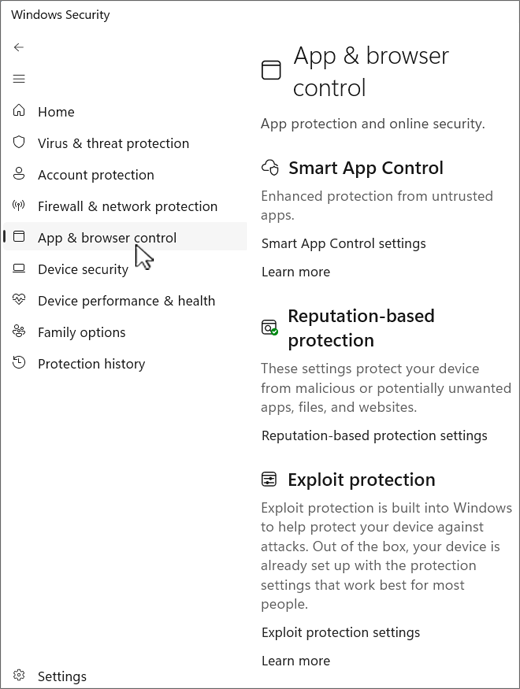
- Open Start, search for Windows Security, and open the app.
- Select App & browser control, then Smart App Control settings.
- Select Off. Read the confirmation and reactivation limitations before proceeding, then confirm when ready.
Turn it back on afterwards
Return to Windows Security → App & browser control → Smart App Control settings and select On if supported. Do not assume a restart will restore it automatically. If On is unavailable, check Windows Update and the limitations shown by Windows before proceeding.