Turn off Real-time protection (persistent)
This policy remains configured until changed back, unlike the temporary toggle. Restarting alone does not restore protection. It works only where the device allows the policy to apply and does not uninstall Microsoft Defender.
Requires an administrator on Windows 10 or Windows 11 Pro, Enterprise, or Education. Windows Home does not normally include Local Group Policy Editor and cannot use this method.
With Tamper Protection on, this policy cannot disable Real-time protection. Contact your administrator on managed devices. Seeing Enabled in the editor does not prove that protection is off.
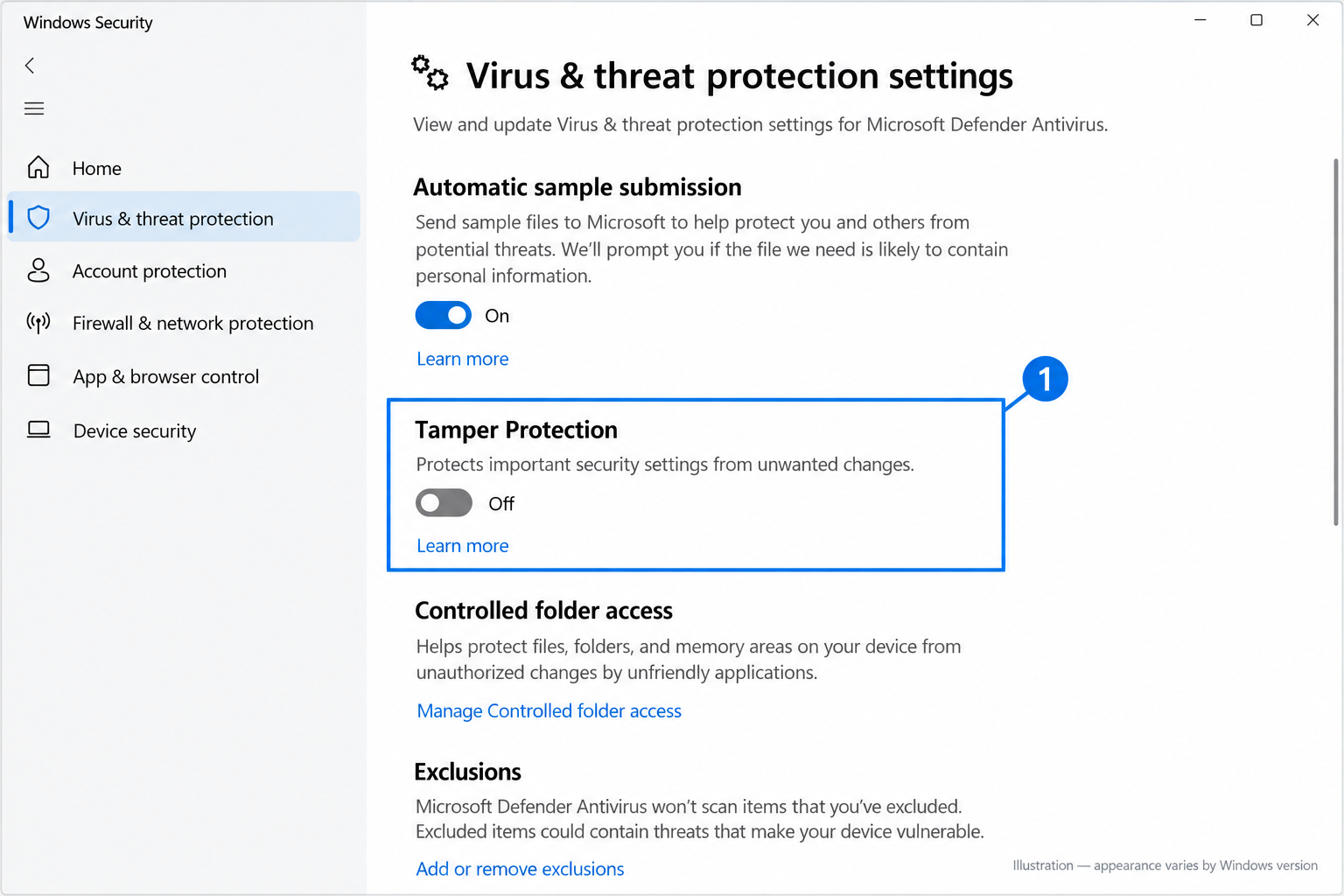
Turn off Tamper Protection before configuring the policy
- Open Windows Security → Virus & threat protection, then Manage settings under Virus & threat protection settings.
- Scroll to Tamper Protection, record its original value, and switch it to Off. Approve the administrator prompt if one appears.
- Check that the toggle is Off before continuing with Group Policy below. If the switch is locked or the device is organization-managed, contact your administrator.
Configure the policy
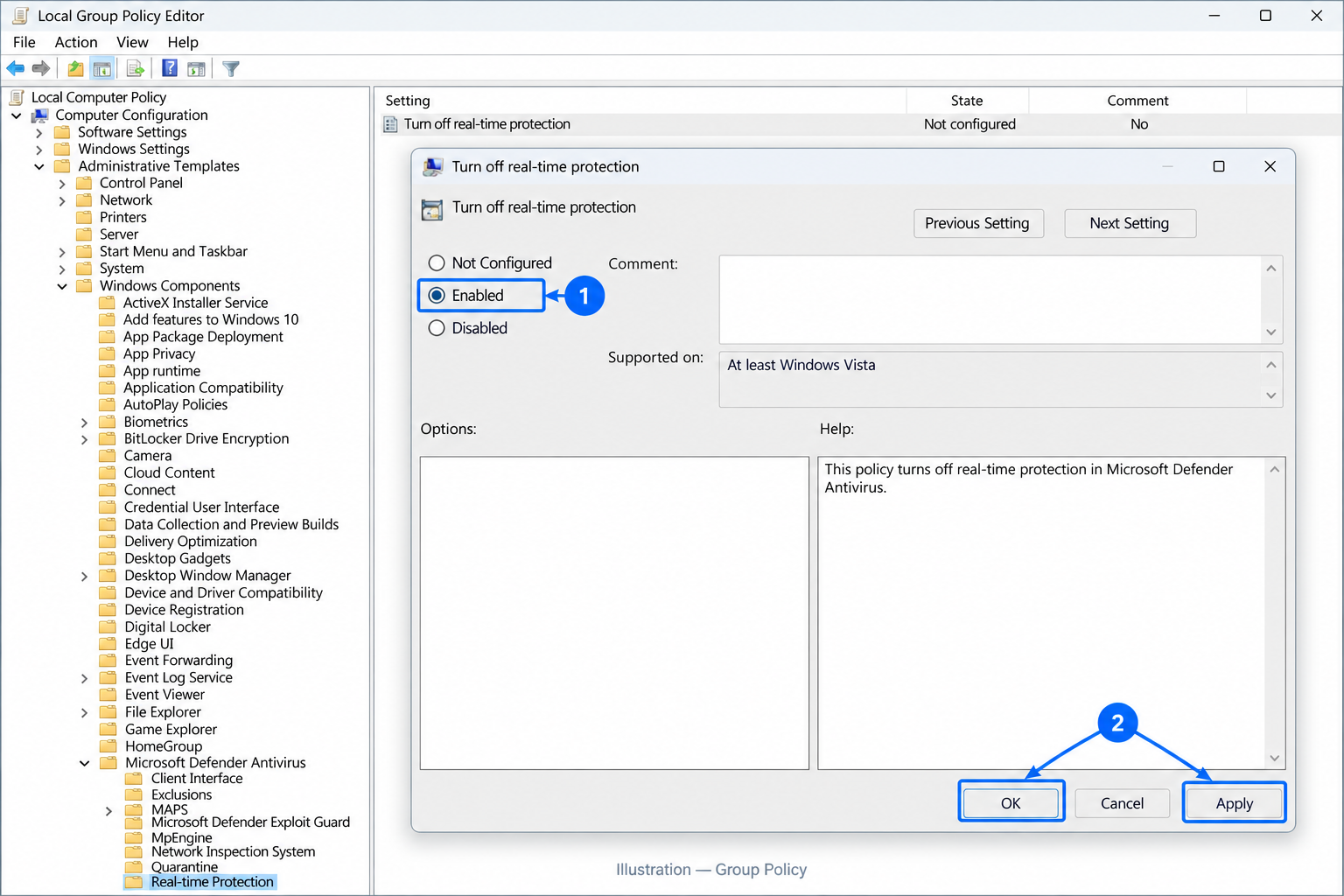
- Press Windows + R, enter gpedit.msc, and press Enter.
- Open Computer Configuration → Administrative Templates → Windows Components → Microsoft Defender Antivirus → Real-time Protection.
- Open Turn off real-time protection, record its previous value, and select Enabled. This enables the policy that turns protection off.
- Select Apply and OK. Check the actual status in Windows Security → Virus & threat protection → Manage settings. If still on, the policy has not applied or is blocked. Files opened or downloaded lack real-time scanning while protection is off.
Restore Real-time protection
- Reopen Turn off real-time protection and select Disabled to enable protection. Apply and save. Alternatively, restore the previous Not Configured value to return control to default settings.
- Check that Real-time protection is On in Windows Security → Virus & threat protection → Manage settings. Restore Tamper Protection if previously changed. Contact your administrator if protection cannot be enabled.
After restoring Real-time protection, return here and set Tamper Protection back to On if it was originally enabled. Turning it back on can enforce protected security settings, so policy-based disabling should not be assumed to persist on every device.
Microsoft Learn reference: Real-time protection Group Policy ↗